Hi
I have had this problem for a long time.I have copied a lot of video programmes from a foxsat HDR to my NAS drives If I try to play one on vero there is an occasional interruption with approx a five second ‘jump’ in the film. When pauses like this it displays the time at the top then it disappears and plays normally until the next one which happens approx every 10 seconds. The files will play OK uninterrupted on the PC using VLC media player, but I always get the problem when playing on Vero. It does not happen with all other formats and I have converted these TS files to MP4, MKS and AVI but they always show the same interruption . I am at a loss as to how to fix it and I have lot of TS file so need a solution if anyone can help. Thanks
May be you are already aware of this - Transport Stream (.TS) files often experience playback lags, missing metadata, or complete failure to open/start because they are designed for broadcasting and streaming. Jumping forward or backward in a .TS file can cause freezes because the player must constantly re-read or re-index the stream.
For better reliability I would recommend converting the .TS file to MKV format using ‘MKVToolNix’.
By default, standard conversion tools perform a remux, meaning the video and audio streams are left completely untouched.
Timestamping/indexing is however different.
.TS files rely on MPEG Program Clock References (PCR) and Presentation Time Stamps (PTS), which can sometimes be erratic if a broadcast or TV tuner dropped packets.
MKV uses a cleaner, continuous relative timestamp system. The conversion process normalizes these timestamps, which often resolves audio/video sync drift issues that were present in the original .TS file.
Can you provide a sample ?
Hmm. That is interesting. I did not know the difference s in streaming types. I had converted the sample file (about 1.2GB) to MKV using Movavi Video Converter vers 21. and it does not solve the problem. Should i try MKVToolNix? Is it free?
Thanks alot.
I have downloaded MKVtoolnix and installed it. I converted the same sample file and it STILL showed the interruptions. So I just don’t know what is causing it as it plays OK in VLC from my NAS drive on the PC. But gives this nuisance when playing in Vero from the same NAS drive.
Is settings>player>subtitles>enable parsing for closed captions> enabled? If it is, does turning it off make the errant behavior stop?
Hi, I have just tried that. It was set to ‘on’ and I changed it to ‘off;’. but the fault was still there, sorry.
To get a better understanding of the problem you are experiencing we need more information from you. The best way to get this information is for you to upload logs that demonstrate your problem. You can learn more about how to submit a useful support request here.
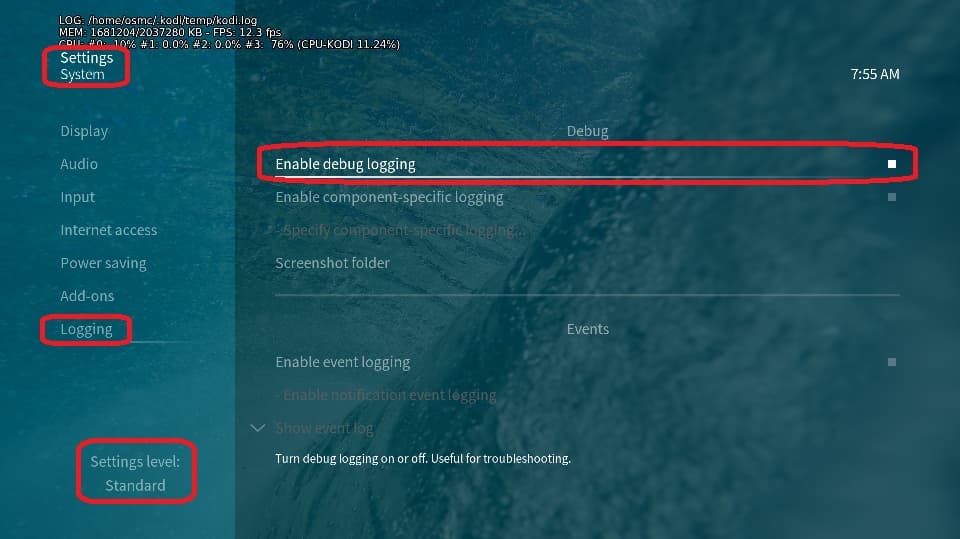
Depending on the used skin you have to set the settings-level to standard or higher, in summary:
-
enable debug logging at settings->system->logging
-
reboot the OSMC device twice(!)
-
reproduce the issue
-
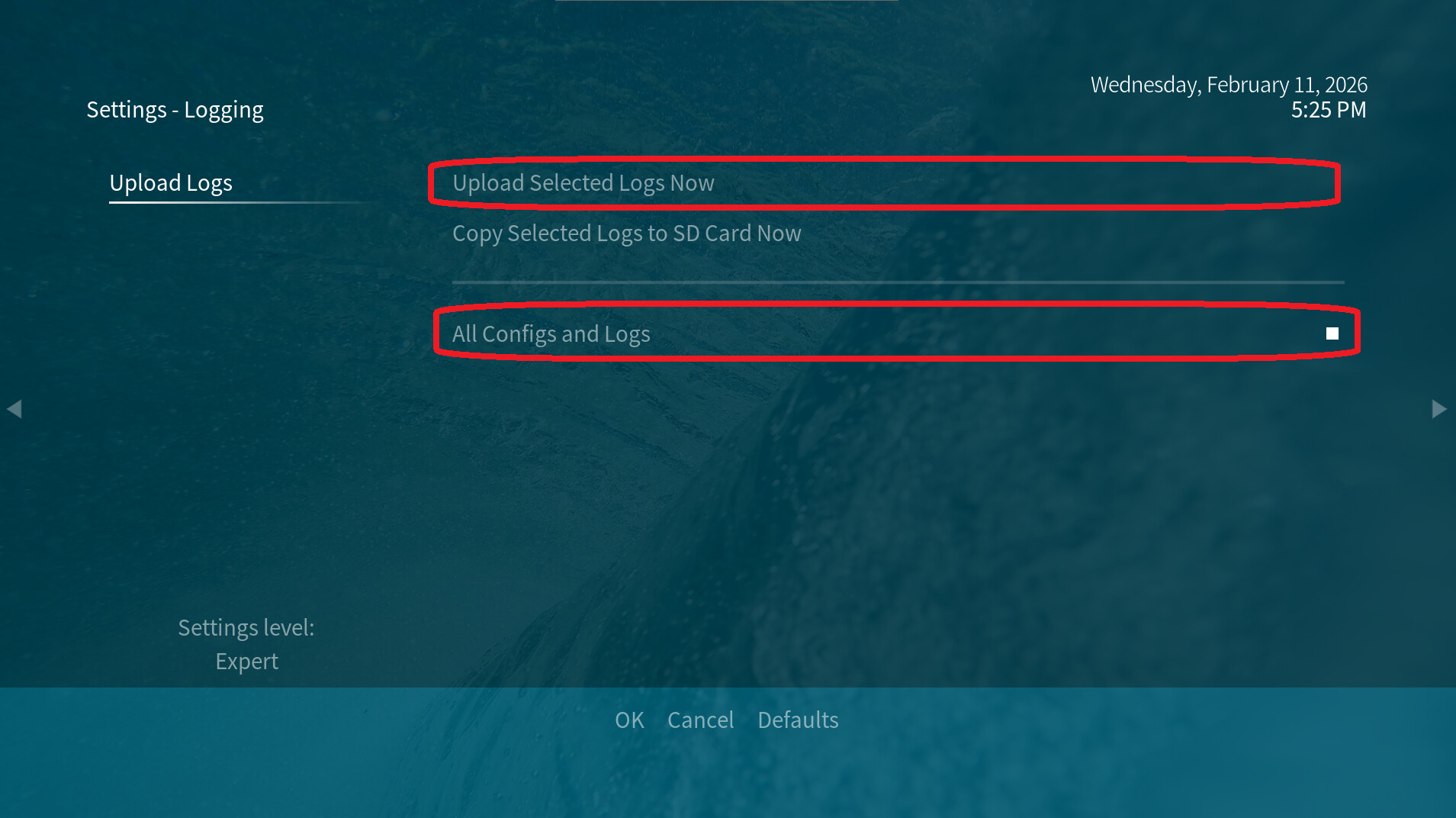
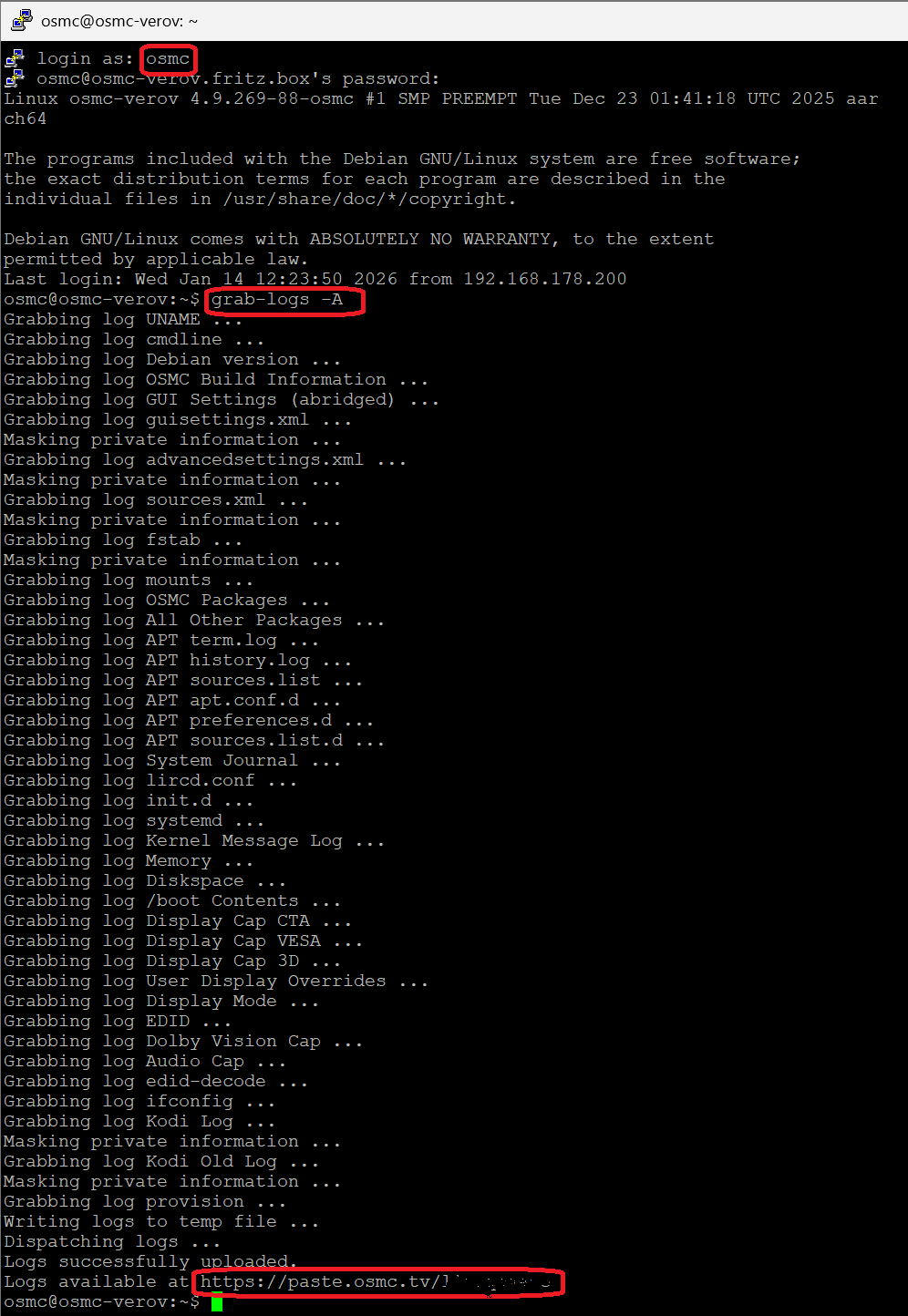
upload the log set (all configs and logs!) either using the Log Uploader method within the My OSMC menu in the GUI or the ssh method invoking command grab-logs -A
-
publish the provided URL from the log set upload, here
Thanks for your understanding. We hope that we can help you get up and running again shortly.
OSMC skin screenshot:
Hmmm. I am not sure I can do that as I am not very computer/media literate. I may try it tomorrow though, Thanks.
If your erroneous .TS file is not too big, could you make it available on a cloud site (e.g. googe drive, drop box etc) and post the link - so we can test it as well ?
If you need to keep things as simple as possible and you just have a set of files that you need to convert to make work than an easy path would be to just run them through Handbrake and be done with it. It is free and relatively straightforward to use if you stick with presets. You would open handbrake and then open a single file. You would then go to presets>presets> and scroll down to the hardware section and find one of the h.265 options does not say “not available” next to it and select that. Then go back to the preset menu and select the set as default option then press the “start encode” option in the main screen. Once that finishes check the file to make sure it is playing on your Vero without any more glitches. Once you confirm it is then make sure all the other video files you want to reencode are in the same folder by themselves (no other files at all) then open handbrake and select the batch option and point it to that folder. It will take a little bit for it to scan them all but when it is done you press the arrow directly next to where it says “add to queue” and choose “add all”. Now just press the “start queue” button and it will churn through every file one by one. It will take a while but you playback issues should be completly eliminated and your files should be much smaller.
1 Like
Success! Well done darwindesin. Your suggestion of using Handbrake solved the problem. I converted the sample TS file to MP4 using your method and it worked fine. Now I only have to work out how to add a folders-worth then I can sit back and do all my files in one go. Many thanks for this, forever in your debt. 
I had trouble with a few files so I upgraded the Handbrake app on my Windows 11PC to verson 1.11. but I still cannot get it to convert a folder-ful of files. I have to load the files individually and add them to the queue.
Any thoughts? Still I am pleased to get something that works (albeit long-handedly)
The current version is 1.8.1
You would need to give more information to help you with this. Where exactly is the breakdown happening, when you point it to the folder, when you try to cue them up?
The broad strokes of how this works is that when you tell it to batch and point it to a folder it scans all the files in that folder and adds them into a box in the upper left of the interface called “title:”. If you click on that box you should see every file that it just scanned (including non video files which is why you don’t want any in your originals folder). All of the settings you see in the interface are for that one file (title) that is currently selected in that box. As you likely do not want to modify settings on files one by one which would takes ages, I had you set a default preset that would likely work well for you so every file would get those settings by default when loaded. Once you are done setting whatever you wanted to set on the individual files if you clicked just the big button for “add to cueue” that would only add whatever your currently selected title was. As you are looking to add the entirety of the files you loaded up you would need to click the little arrow inside that big button to see the dropdown that has an “add all” option. Once you have done that if you click on the big “Queue” button on that top bar it will bring up a list of files with the options chosen for each. You should see all the files you added. Once you tell it to start to encode it just works its way through the list.
Seems a very complex thing I have compromised by loading each file into the queue and starting the queue. I think there are many ways to accomplish the same thing so I will eventually find one that suits me i think. With files taking so long to convert it will take a while for this to materialise. But thanks for the advice I will keep that in mind as I travel through!
1 Like
Right I have converted all my TS files which were from the BBC’s Nordic Noir series and they all work fine. What I must explain now is I am deaf and so rely on subtitles 100% to be able to follow what is being said. With the Nordic Noir ones they are usually embedded into the track so there is no problem. But I have a lot of English series too which are subtitled but these do not transfer the subtitles when converting in Handbrake. I have changed the settings in Handbrake to subtitles, English, DVB and embedded in the video. But they never appear in the resultant MP4. I just get the video steam which is OK, no stuttering, but no subtitles. If I play the original TS files via my PC I can get subtitles OK (using VLC) and also when I pay the original TS file via VERO they also play subtitles OK but have the infuriating stutter. I have checked vero and I don’t think the problem lies there I think it is in the conversion with Handbrake which does not pick up the subtitles. Any suggestions? Cheers.
Hi,
Have you tried to changing the format to Matroska?
I had issues with embedded subtitles in the past, when using mpeg-4.
Regards Tom.
Hi Tom, Matroska? What is that? I can’t see it in Handbrake settings anywhere.
Hi Tom, Sorry for my ignorance It is the MKV format isn’t it I tried a TS with subs using MKVtoolNix but it was awful. Still got the stuttering and also a slo-mo video playback.
Hi,
Yes, but MKVtoolNix is only changing the container. With Handbrake you doing re-encode, if your are using default settings I suspect you are re-encoding to h264.
I would say if you’re getting better results with handbrake with mp4, then using the mkv setting you won’t get worse quality, but it would hopefully fix your subtitle issue.
Regards Tom.
Tom… I tried MKV with Handbrake but while it was perfect in video it did not display any subtitles. So I tried the MOV format. Again it wouldn’t show subs.
I am at a loss as to what to use. It seems none will do the job of embedding the subtitles which are in the TS files.