ok i’ll take that when the problem occur. My graphics interface is working when this occur. What do i have to take and how ? Thanks
Hello, this evening the problem occurs again. I took this screen picture and my log (without reboot) is on : paste.osmc.tv/citosixido) .
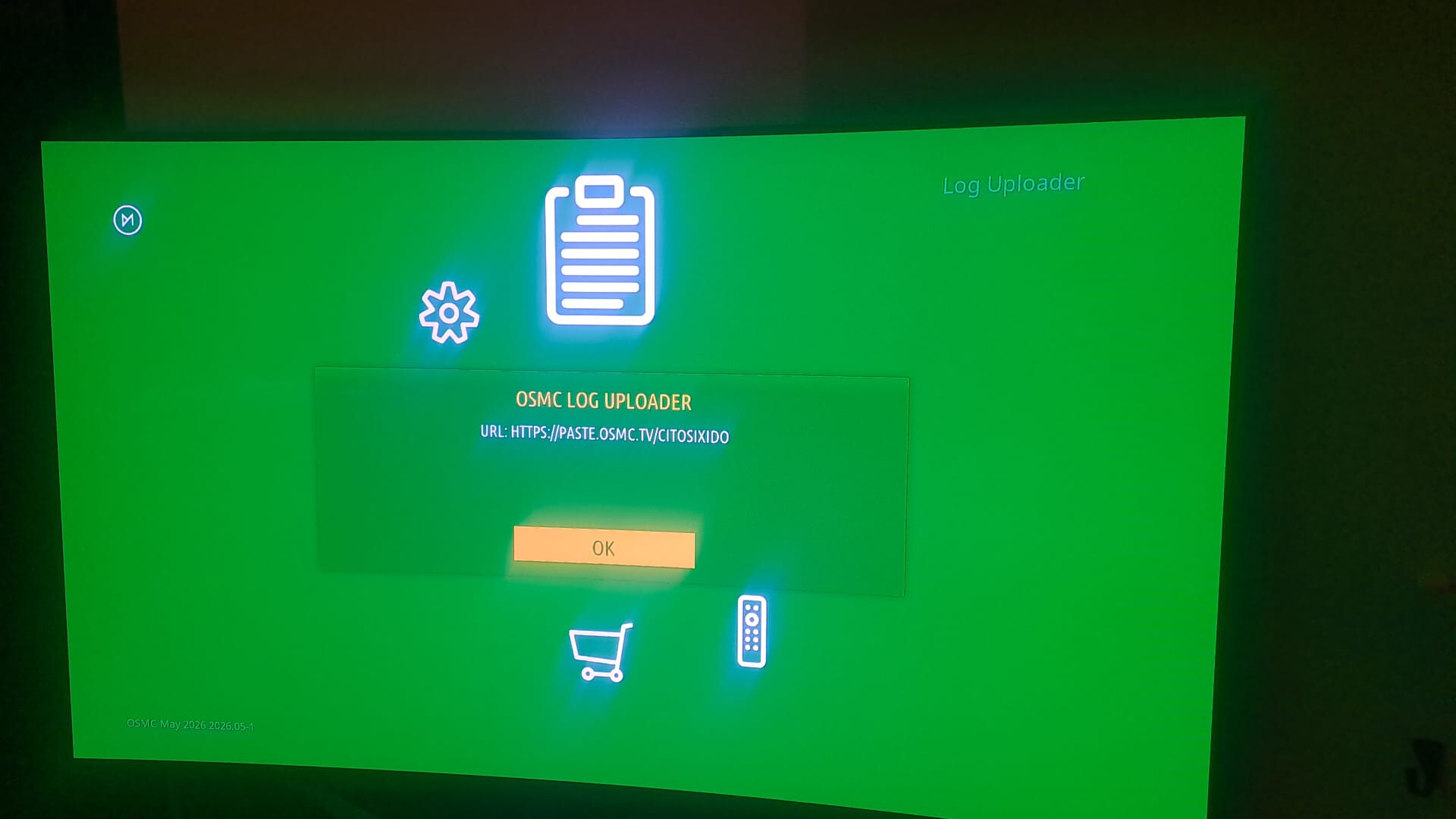
Can you help me this time ?
Thanks you, KR
There are several things here that you should work on or correct; only if this fails to provide a solution should you post logs here again:
- Something is wrong with the physical connection to your TV:
Nov 07 18:20:11.960458 osmcvero5 kernel: EARC fe333800.earc: HDMITX cable is plugin
...
Nov 07 22:10:14.810442 osmcvero5 kernel: EARC fe333800.earc: HDMITX cable is plugout
...
Nov 08 04:37:28.706203 osmcvero5 kernel: EARC fe333800.earc: HDMITX cable is plugin
...
Nov 08 04:47:26.898202 osmcvero5 kernel: EARC fe333800.earc: HDMITX cable is plugout
...
With a normal working HDMI connection you should see exact one cable related log entry. To make it more sick, your system journal log is limited to 24 hours and might be corrupt or shortened and so is missing more of these cable entries; see below to correct the log issue.
Such problem entries could point to a cable issue or the connected device behaves in a sick way.
- The EDID information for the connected TV/AVR/soundbar is missing. This could be a follow up issue of the cable issue or misbehaviour of the device itsself or be a result of missing updates to OSMC.
An error occurred while grabbing edid-decode:
 subprocess.CalledProcessError: Command '['/usr/bin/edid-decode', '/sys/devices/virtual/amhdmitx/amhdmitx0/rawedid']' returned non-zero exit status 255.
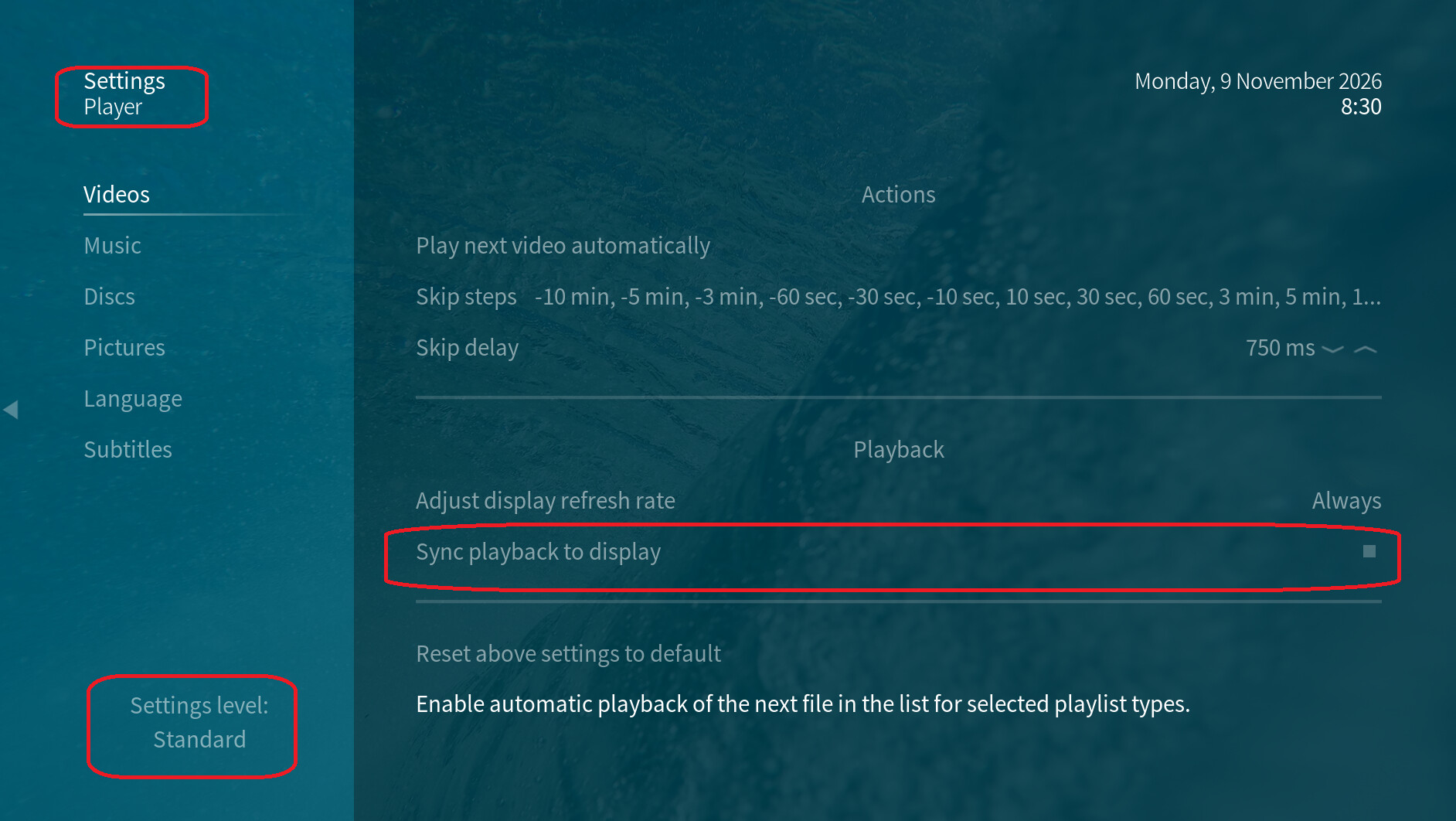
- Typically you don’t use ‘Sync playback to display’ at settings->player->video. Your settings level has to be at least ‘Standard’ to see this entry in the menu. Deactivate this option:
- You have modified some screen resolution settings related to the edges of the display. Typically, we see this kind of configuration when users attempt to correct “overscan” borders on the OSMC player rather than on the TV itself. We might be able to help you with your TV if you provide the manufacturer and model of your TV.
To reset the settings you have modified
- either go to system->settings-> display ->video calibration and set manually Top-Left overscan compensation to 0,0, and Bottom-Right overscan compensation to 0,0 and pixel ratio adjustment to 1.000
- or you directly correct those values in file `/home/osmc/.kodi/userdata/guisettings.xml’ with a following immediate reboot
for EVERY MODIFIED RESOLUTION.
<resolutions>
        <resolution>
            <description>720x480 @ 59.94 - Full Screen</description>
            <subtitles>461</subtitles>
            <pixelratio>1.034483</pixelratio>
            <overscan>
                <left>14</left>
                <top>11</top>
                <right>705</right>
                <bottom>469</bottom>
            </overscan>
        </resolution>
...
        <resolution>
            <description>1280x720 @ 59.94 - Full Screen</description>
            <subtitles>690</subtitles>
            <pixelratio>1.000000</pixelratio>
            <overscan>
                <left>26</left>
                <top>15</top>
                <right>1253</right>
                <bottom>705</bottom>
            </overscan>
        </resolution>
        <resolution>
            <description>1920x1080 @ 24.00 - Full Screen</description>
            <subtitles>1014</subtitles>
            <pixelratio>1.000000</pixelratio>
            <overscan>
                <left>38</left>
                <top>22</top>
                <right>1882</right>
                <bottom>1058</bottom>
            </overscan>
        </resolution>
...
        <resolution>
            <description>1920x1080 @ 50.00 - Full Screen</description>
            <subtitles>1004</subtitles>
            <pixelratio>1.000000</pixelratio>
            <overscan>
                <left>39</left>
                <top>24</top>
                <right>1880</right>
                <bottom>1057</bottom>
            </overscan>
        </resolution>
...
        <resolution>
            <description>1920x1080 @ 60.00 - Full Screen</description>
            <subtitles>1029</subtitles>
            <pixelratio>1.000000</pixelratio>
            <overscan>
                <left>38</left>
                <top>22</top>
                <right>1882</right>
                <bottom>1058</bottom>
            </overscan>
        </resolution>
        <resolution>
            <description>1920x1080 @ 59.94 - Full Screen</description>
            <subtitles>997</subtitles>
            <pixelratio>1.000000</pixelratio>
            <overscan>
                <left>38</left>
                <top>22</top>
                <right>1882</right>
                <bottom>1058</bottom>
            </overscan>
        </resolution>
...
Once all these points have been addressed, let us know how things are going for you now.
The following is a standard text block containing instructions for resetting the system journal.
1 Like
Thank your for the provided log set. Unfortunately the system journal only covers the last minute or seems to be corrupt:
Please, can you try with a new clean journal log?
sudo journalctl --rotate
sudo journalctl --vacuum-time=1s
sudo reboot
and collect a log set again? Thanks in advance for your efforts.
An alternative method to get rid off the current journal file is
sudo systemctl stop systemd-journald
sudo rm -rf /run/log/journal/*
sudo systemctl start systemd-journald
sudo reboot
1 Like
Thanks a lot, i modify some parameters. My TV is a Oled LG EG91 (i don’t remenber the exact model..) .
Stupid question : How can i make some SUDO command ? what do you use ?
thks again
Hi, see this wiki article here to get access via ssh and putty. Please let us know if you have any further questions.
For the overscan issue see the appropriate method for LG:
- Samsung TV - go to Menu / Picture / Picture Options / Size / Screen Fit (instead of 16:9).
- LG TV - go to Settings / Picture / Aspect Ratio / Just Scan (instead of 16:9)
- Sony TV - hit Home button, go to Settings / Screen / Display Area / Full Pixel
- Sharp TV - hit View Mode button, select “Dot by Dot” or “Full screen”
- Sharp Aquos - go to Menu / System Options / View Option / View Mode / Dot by Dot
- Panasonic TV - go to Menu / Picture / Screen Settings / 16:9 Overscan / Off
1 Like