what is the suggested way to setup for a 4k display these days?
My source material is a mix of all resolutions (still a lot of SD, but 1080p max - no UHD here) and all possible refresh rates. If I set the TV to “follow” the refresh rate of the media file, there will be a lot of switching back and forth and I’ll have to adjust the display for each resolution - which is a pain. But if I set it to a constant output format, e.g. 1080p 60 Hz, then the Vero might do some pre-processing and possibly introduce stuttering due to mismatched refresh rate.
Is this still a concern today? Or has it become a non-issue with 100 Hz TVs whose UHD-resolution won’t match the source anyway?
What makes you think that? Your display will automatically adjust to whatever resolution it is fed, assuming it supports it. If it doesn’t, Vero will convert it to a supported resolution.
I had to adjust the dimensions to fit the picture to the screen (“calibrate screen” in Kodi.) You know, where you move the bars in the screen corners to fit.
This has to be repeated each time the framerate changes. If I set the Kodi GUI to 1080/50 and calibrate, I have to repeat the process after I change to 1080/60. This calibration then is saved for each mode, I don’t have to do it each time. But you have to call up every single mode and do the calibration once.
Do not Do that!!! Please reset it and then Disable Overscan!
It seems you have an issue with Overscan. Ensure that you did not have any calibration configuration in Kodi/OSMC and use one of the following methods depending on the TV Brand you use.
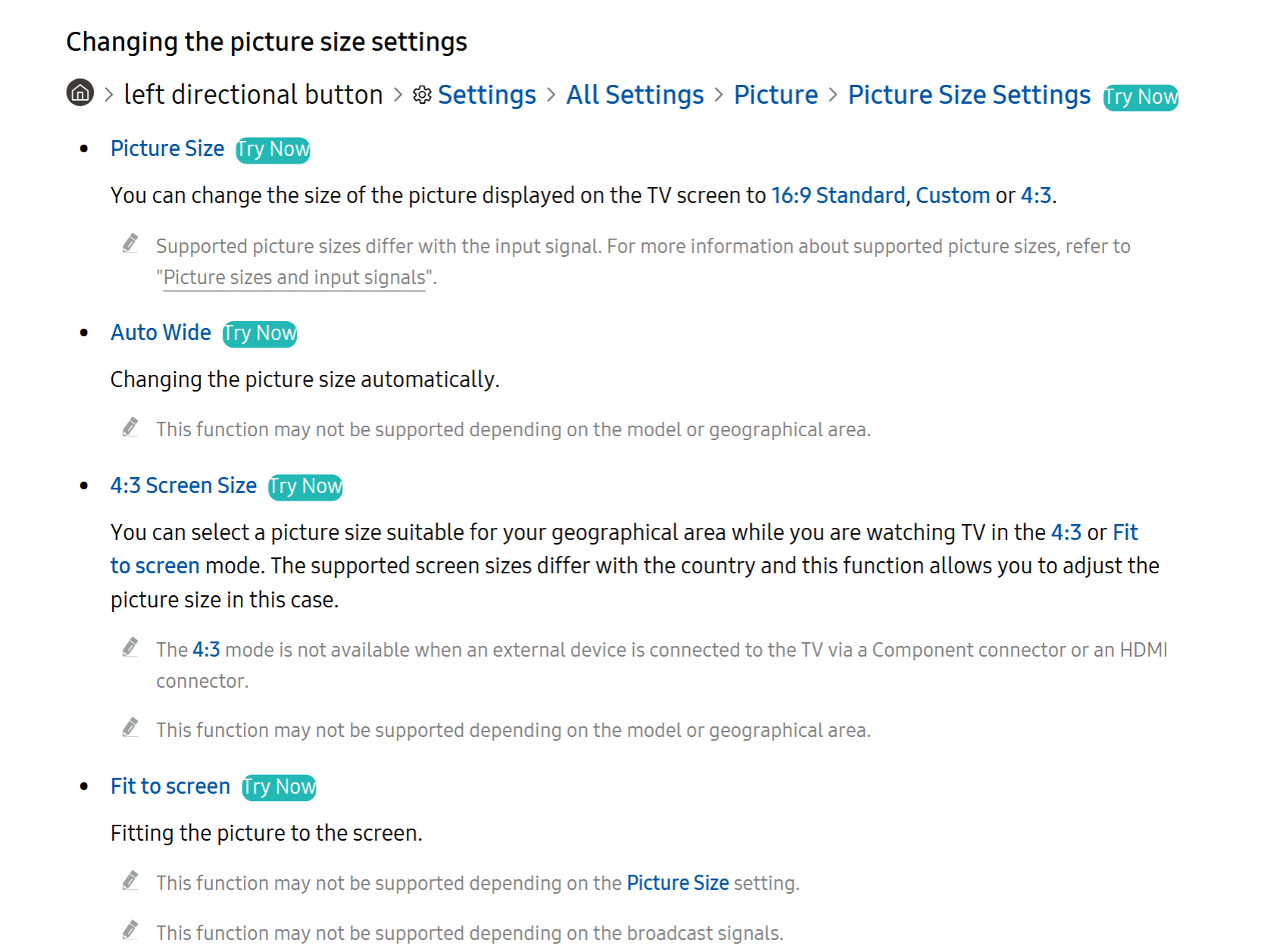
Samsung TV - go to Menu / Picture / Picture Options / Size / Screen Fit (instead of 16:9).
LG TV - go to Settings / Picture / Aspect Ratio / Just Scan (instead of 16:9)
Sony TV - hit Home button, go to Settings / Screen / Display Area / Full Pixel
Sharp TV - hit View Mode button, select “Dot by Dot” or “Full screen”
Sharp Aquos - go to Menu / System Options / View Option / View Mode / Dot by Dot
Panasonic TV - go to Menu / Picture / Screen Settings / 16:9 Overscan / Off
There is no such thing in the menu of my TV (Samsung S90F). I couldn’t find this setting in a Samsung model I tested a year ago, and I can’t find it in the one I just got now. Either there is a menu I haven’t found yet (wouldn’t rule that out, Samsung’s menu structure is hard to follow) or this setting doesn’t exist any more. It could also be dependent on which HDMI port is used, though - might need to read up on that.
I explained that to myself in that with the higher resolution of today’s screens there isn’t a 1:1 representation of the source anyway, and thus you won’t loose much by manually adjusting (the picture will be rescaled anyway.)
But I’ll try to follow the menu path you describe again. Will report back.
Really? I understood the “fit” function as “just give me any resolution, I’ll scale it up/down to fit the screen”. Thus I’d want it OFF, since I don’t want any artificial scaling. Isn’t that right?
4:3 doesn’t behave differently than 16:9, it might be a little too high (depending on settings), but aspect ratio is fine. With Fit=On it’s correct just as is 16:9.