I’ve found several older discussions on this subject but none seem to address my particular problem; apologies if it is in fact covered elsewhere.
My Vero V is connected to my router by an Ethernet cable and the player reports that the connection is active, but the Vero doesn’t show up on my main PC as part of the network. If I try to access it using the Vero’s IP address, I’m asked for my network username and password, despite the fact that I have turned off network credentials for the whole system and nothing else on the network asks for that information.
Is there a setting in the Vero that I need to adjust? Following advice here and elsewhere I’ve installed the Samba server from the OSMC app store but it doesn’t seem to have had any effect; perhaps I misunderstood its purpose. What I principally need is to be able to copy or transfer media files from the main PC to the SSD attached to the Vero.
Grahamh, thanks for that. I tried it, and got The user name or password is incorrect.
Which suggests that I’ve already established the necessary credentials, but I’ve certainly no recollection of doing so. Are there defaults generated by the Vero which I need to override?
Besides smb the tool WinSCP can be your friend using sftp or scp protocol at Vero’s port 22 and user osmc.
The mounted drive you’ll find at paths /media or /mnt.
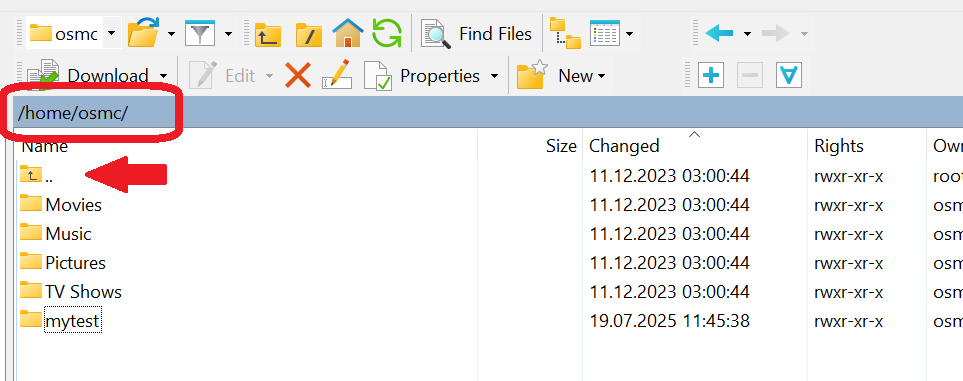
Thanks for that: I’ve installed WinSCP and managed to connect to the Vero by using its IP address as the host name, osmc as my user name and entering a password.
I’m seeing the following directory structure (forgive the lack of a proper layout):
home… osmc… Movies, Music, Pictures, TV Shows
However, the final four directories are empty; the external SSD connected to the Vero doesn’t seem to be recognised.
That worked. Many thanks: I now have the access I need. I tried transferring a file from the PC to the Vero SSD: it was a fair bit slower than with my old HTPC-on-the-network setup, but it happened.
I hope you won’t think me ungrateful if I say that I’d still like to work out how get the Vero to appear on my network.
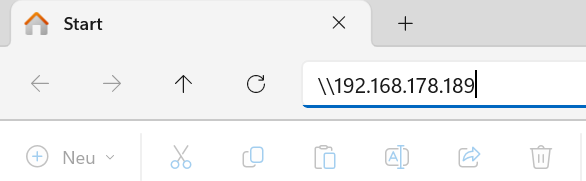
Well, this let me think that you typed in the ipv4 address into the Windows explorer. What you need to do is to type the prefix \\ and the ip address like
using the Windows explorer.
Regarding the visibility of the samba server in Windows network infrastructure by default, I’ve no idea since I’m using nfs since years in my environment. Perhaps, @darwindesign can shed some light, here.
In My OSMC it should show if it is running. If Windows isn’t taking the credentials then I’d think the next thing to try would be to ssh in…
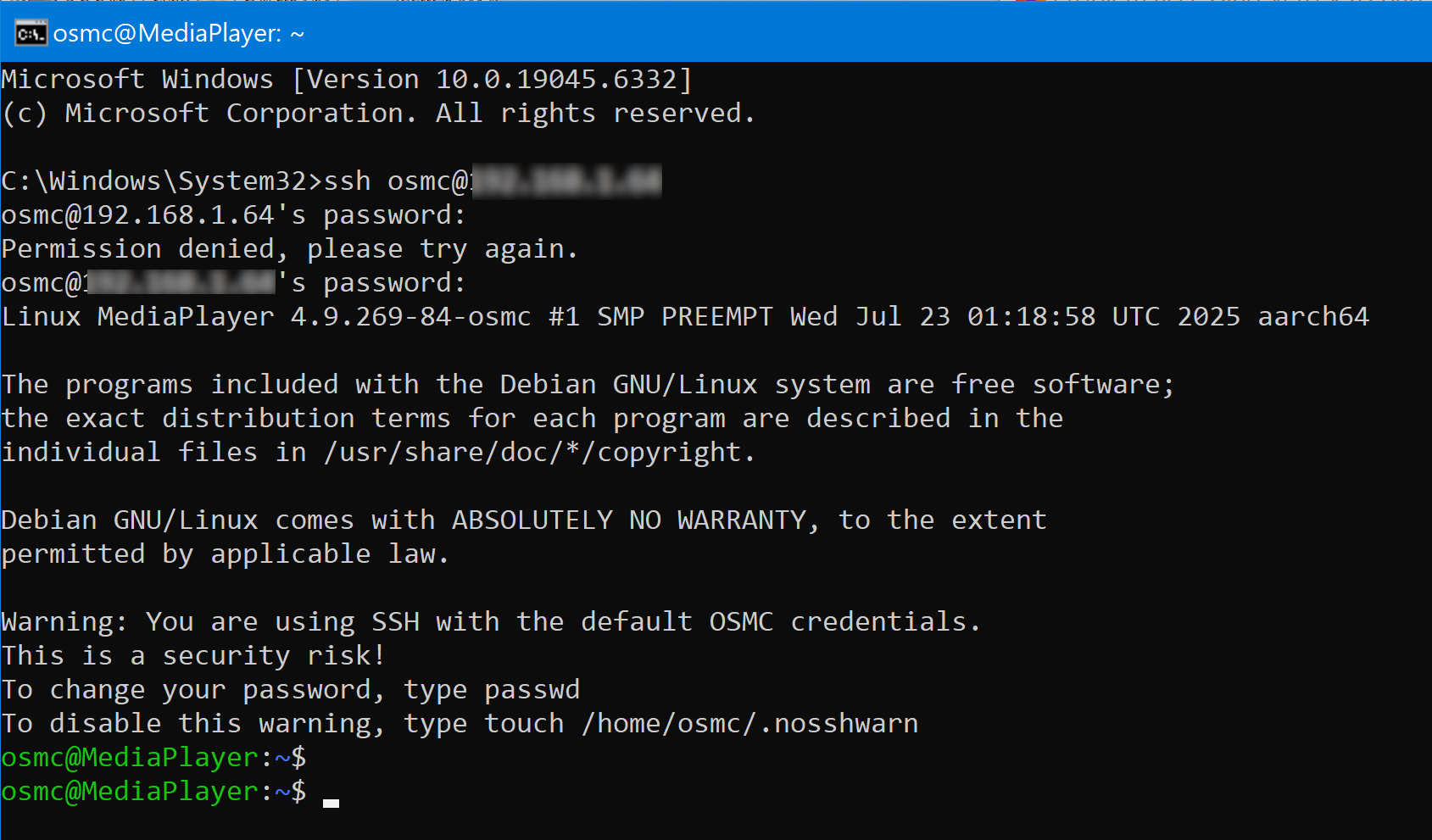
Start menu, type cmd then hit enter to get to command prompt. Then type in ssh osmc@[ipaddress] and then when prompted the password should be “osmc” unless you set it as something else during the initial configuration. Once your at the terminal of your Vero you can…
sudo smbpasswd osmc
which will let you set the SMB password for the default user. I’ve not seen an issue myself but I’m pretty sure I remember seeing a few posts of people having an issue with SMB being cured by manually setting the password.
Also, to confirm. Are you just plugging this drive in and letting OSMC deal with the mount or are you manually setting it us via autofs or fstab. When manually setting a mount you also have to manually configure a SMB shares for it. Also have you played any media from this drive to make sure it is working in general?
Thanks for clarifying that. I typed the command, using my Vero’s IP address, but when I tried to enter something my keyboard presses had no effect. I’ll close the command prompt and try again from scratch.
Edited to add:
Same result. My keyboard might as well have been unplugged. Only the Return key worked, and generated a new line. Then I got this:
That’s great, your now at the terminal (Linux command line) of your Vero. Now you can enter the “sudo smbpasswd osmc” command there which should then come back and ask you what you want to set your SMB password to. Then when you open Windows explorer and in the address bar enter “\\192.168.178.189” Windows should prompt you for your credentials and for the user you would put “osmc” and for the password you put whatever you just set for the SMB password at the terminal.
Thanks! I thought I’d done something terminally wrong. I’ll do what you suggest.
Edited to add:
I did that, got the new password prompt, entered something (which as before didn’t appear on the screen, but this time I twigged that the typing was probably actually working).
I was asked to repeat the password and did. But when I went back to my shortcut and entered it there, I got the same old …is not accessible message.
I’ll go through the whole procedure again in case I made an error with my invisible typing.
Edited to add:
Exactly the same result, I’m afraid. The new password (I tried a different one this time) was accepted. I repeated it, exited from the command box, tried it in my shortcut - and once again I was told the target was not accessible.