Hi,
I’m currently using Vero V with the default OSMC skin. I would like to display the full file path in the movie information screen (video info page).
I checked the Library and Video settings but couldn’t find an option like “Show file path in video information.” It seems this setting might not be available in the OSMC skin.
Is there a way to enable showing the file path without switching to another skin? If not, is there a recommended method to quickly view the selected movie file’s saving location in the external drives from the movie info page?
1 Like
You can see the path when opening the video info dialog and highlighting the “Refresh” button.
2 Likes
Hi,
I would like to ask how I can determine whether a movie has been successfully scanned into the Vero/Kodi library, or if it failed to be identified by the scraper.
In my case, some movies do not appear in the Movie Sets as expected, and I am not sure whether:
-
The movie was never scanned into the library, or
-
It was scanned but incorrectly identified as a different title.
Is there a way within the interface to clearly check a movie’s scan status?
For example, can I see whether a specific file exists in the database but was misidentified, or confirm that it was not added to the library at all?
Thank you very much for your guidance!
You can only scroll through your folder via the videos section and check whether there’s a movie in the list only showing the file name and a thumbnail (not scanned/identified) and double checking one by one (correctly scanned).
noted with thanks! So there is not any more direct or efficient method to verify scan status, especially for larger movie collections?
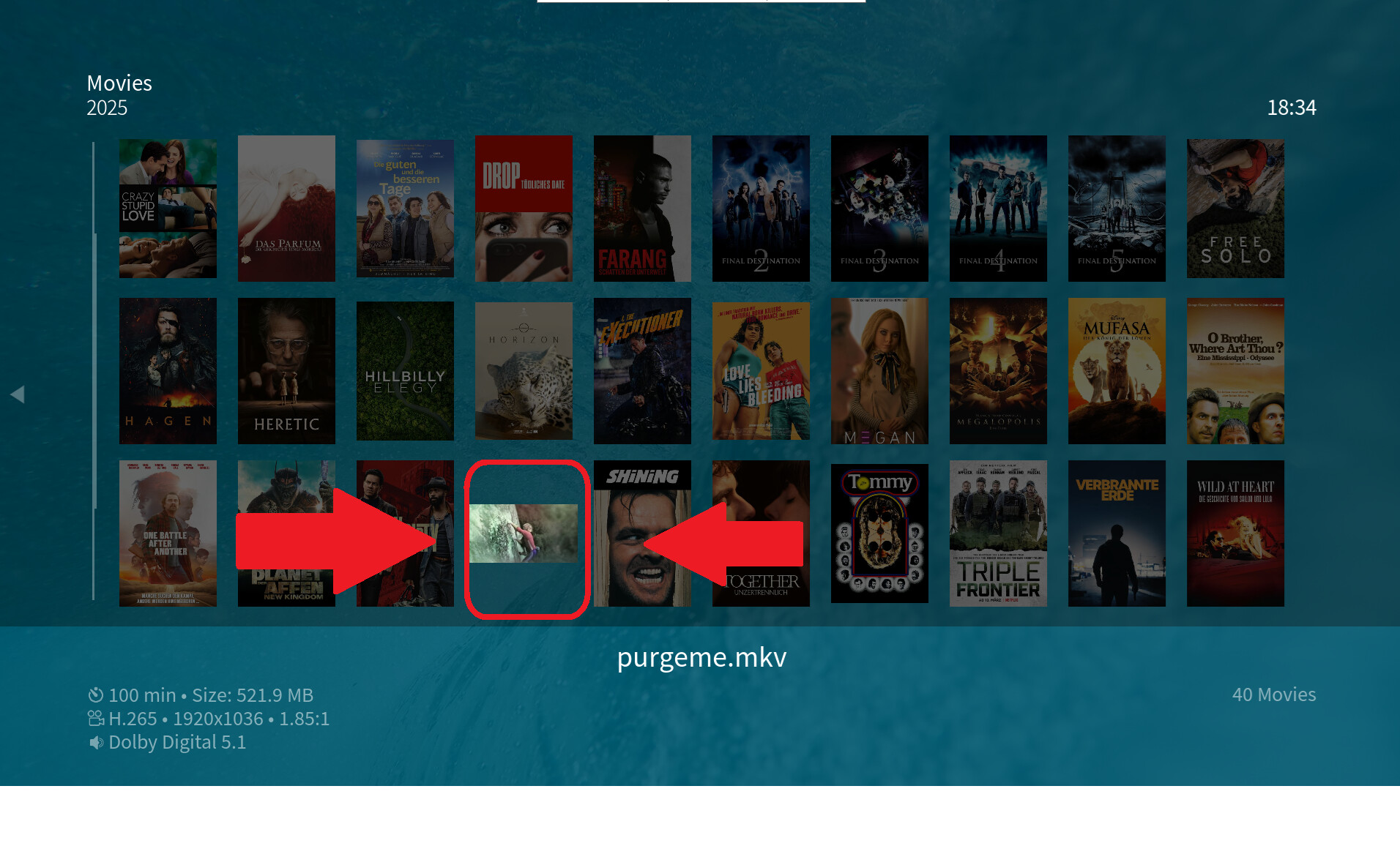
Well, if you select the view type “Wall small” below Videos -Files and your specific add-point, you only have to look for an empty icon symbol or a thumbnail to identify a file which could not be scraped:
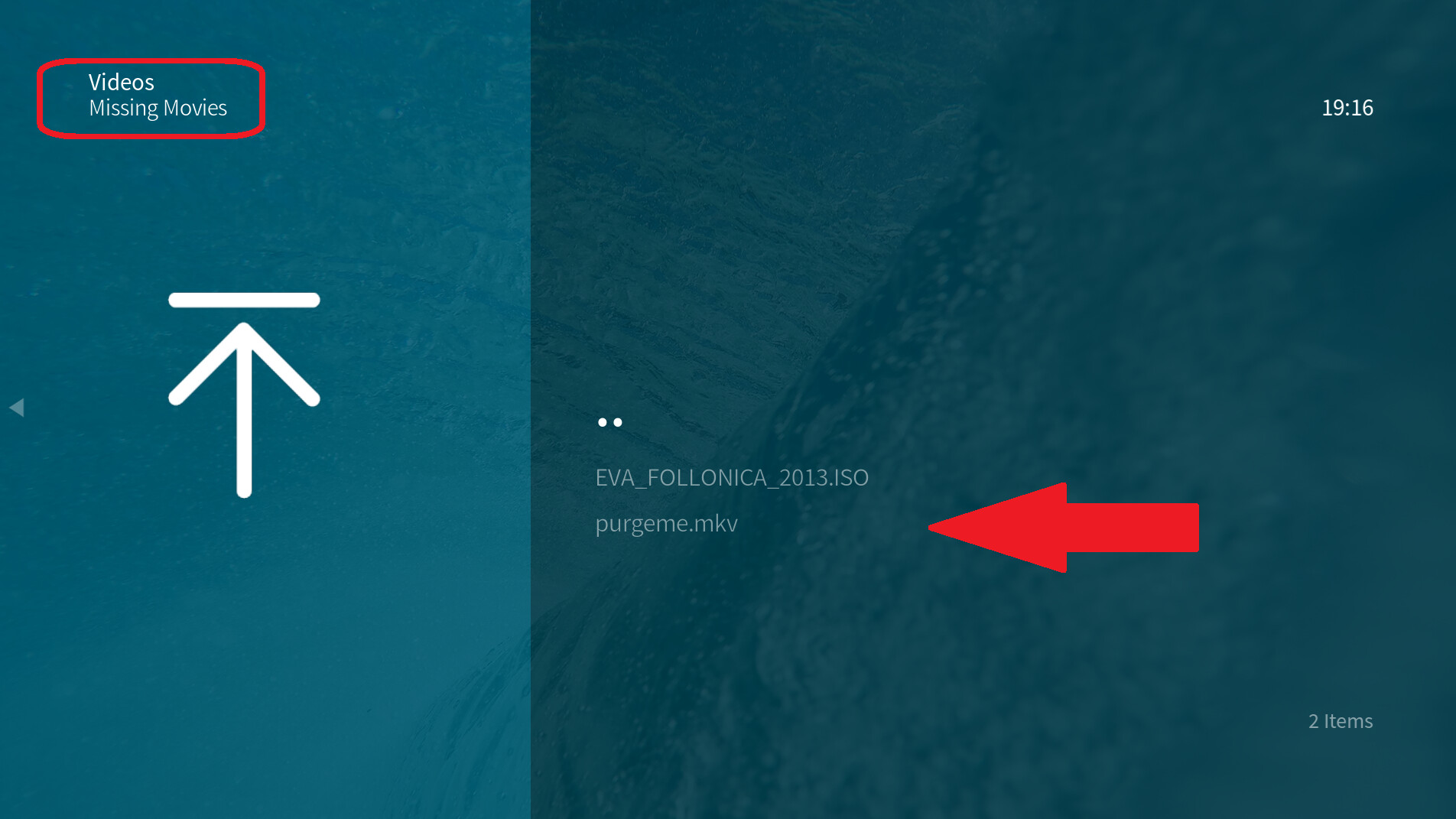
You can also install and enable the “Missing Videos” add-on with the add-on browser from the repository. This exactly should give you, what you want. Place it to your Favourites.
1 Like
It won’t show you whether a movie has been scraped in a wrong way though… Not sure there’s any way to fix that part without looking at each library entry one by one.
1 Like
If a movie scrapped correctly but didn’t get picked up in a movie set you would need to look it up at www.themoviedb.org and see if it is listed in a movie set there. They have various rules on what qualifies as a movie set or not and they don’t always agree with what any given user might assume.
You can manually a movie to a movie set in Kodi by highlighting it in the movie library, bring up the context menu, manage, manage movie set.
First of all, thank you very much for all of your replies and suggestions. I really appreciate the time and effort you’ve taken to help. I will go through each suggestion one by one and try them carefully.
I have another question I would like to ask:
On one of my hard drives, I have a number of movie demo clips which I do not want to import into the library. I understand that the best practice would be to store these clips in a separate folder on a different drive. However, at the moment I do not have enough free drive space to relocate approximately 1TB of those demo clips.
Is there a simple way to prevent Kodi/Vero from scanning specific folders during the library update process? For example, can I add a specific prefix, suffix, or special character to the folder names so that the scraper will ignore them? Or is there another recommended method to exclude certain folders while still scanning the rest of the drive as Movies?
Thank you again for your help and guidance.
You can put an empty file in the folder titled .nomedia and that will make the scraper skip everything in that folder.
A better option may be to just make sure these files have the word “sample” in their name which will make sure they are skipped by the exclude filter.
I would like to ask whether there is a practical way to switch easily between two playback modes on Vero:
Direct USB playback (external drives connected directly to the device)
Network playback via SMB from a Windows PC (single shared folder)
My goal is to avoid duplicate entries in the Kodi library and to keep watched status and metadata consistent when switching between these two methods.
I understand that Kodi treats different file paths as separate sources (e.g., USB path vs. SMB path), which can result in duplicated library entries. Before committing fully to one method, I wanted to check whether there is a recommended approach that allows smoother switching between local USB playback and network SMB playback without maintaining separate libraries.
For example:
Is there a way to unify paths so both methods appear identical to Kodi?
Would using profiles or a shared database be a reasonable solution?
Are there best practices others have used in similar setups?
Thank you for your guidance!
The most practical way to have multiple synced players in a typical Kodi setup is to use MySql for the library database. If you have the same media organized exactly the same in both network and local attached you could swap between them with path substitutions. I have a howto on this site about that.
Another option for having a unified database would be to put all your media into a Plex, Jellyfin, or similar server and then use Kodi addons to have that fill in and maintain media status.
@jameszh007 Why do you keep movies twice, on both your Windows PC and your USB hard drives?
That’s also a kind of waste of disk space.
all of my movie files are saved in external hard drives, now I decide to go for SMB only, but can not make it, please refer to my next message for problem details.
I am trying to connect my Vero to a Windows 10 PC shared folder via SMB on a local wired network.
The issue is that every time I enter the username and password in Vero, it returns to the “Lock Preferences for SMB://…” screen and does not authenticate successfully. It never proceeds past that point so far.
Here is what I have already verified and tested:
- Both devices are on the same local network (wired).
- The shared folder is accessible from another Windows machine on the network.
- A local Windows account was created specifically for SMB access.
- The account password was reset via command line to ensure correctness.
- Both Sharing permissions and Security (NTFS) permissions include that user with full control.
- Password-protected sharing is enabled.
- Kodi Master Lock is disabled.
- Both the PC and Vero have been rebooted.
I tested both plain username and machine-name\username formats. I am connecting using the IP address method. Despite all of this, Vero keeps returning to the same lock preferences authentication screen.
Has anyone encountered a similar issue? Could this be related to SMB protocol version settings or Windows authentication policy?
Any suggestions would be greatly appreciated.
I am trying to connect my Vero to a Windows 10 PC shared folder via SMB on a local wired network.
The issue is that every time I enter the username and password in Vero, it returns to the “Lock Preferences for SMB://…” screen and does not authenticate successfully. It never proceeds past that point so far.
Here is what I have already verified and tested:
- Both devices are on the same local network (wired).
- The shared folder is accessible from another Windows machine on the network.
- A local Windows account was created specifically for SMB access.
- The account password was reset via command line to ensure correctness.
- Both Sharing permissions and Security (NTFS) permissions include that user with full control.
- Password-protected sharing is enabled.
- Kodi Master Lock is disabled.
- Both the PC and Vero have been rebooted.
I tested both plain username and machine-name\username formats. I am connecting using the IP address method. Despite all of this, Vero keeps returning to the same lock preferences authentication screen.
Has anyone encountered a similar issue? Could this be related to SMB protocol version settings or Windows authentication policy?
Any suggestions would be greatly appreciated.
Should I generate a log for this problem?