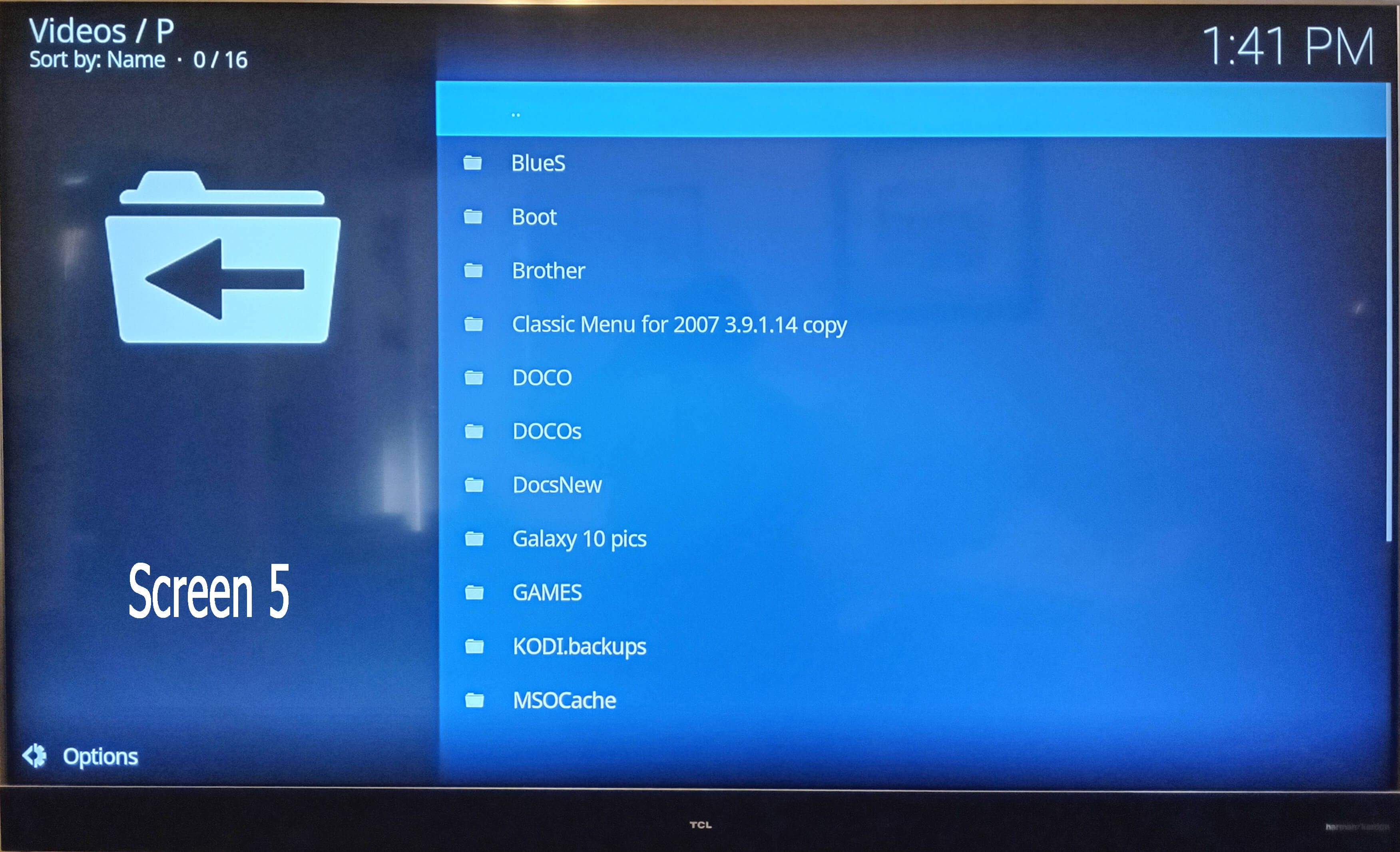
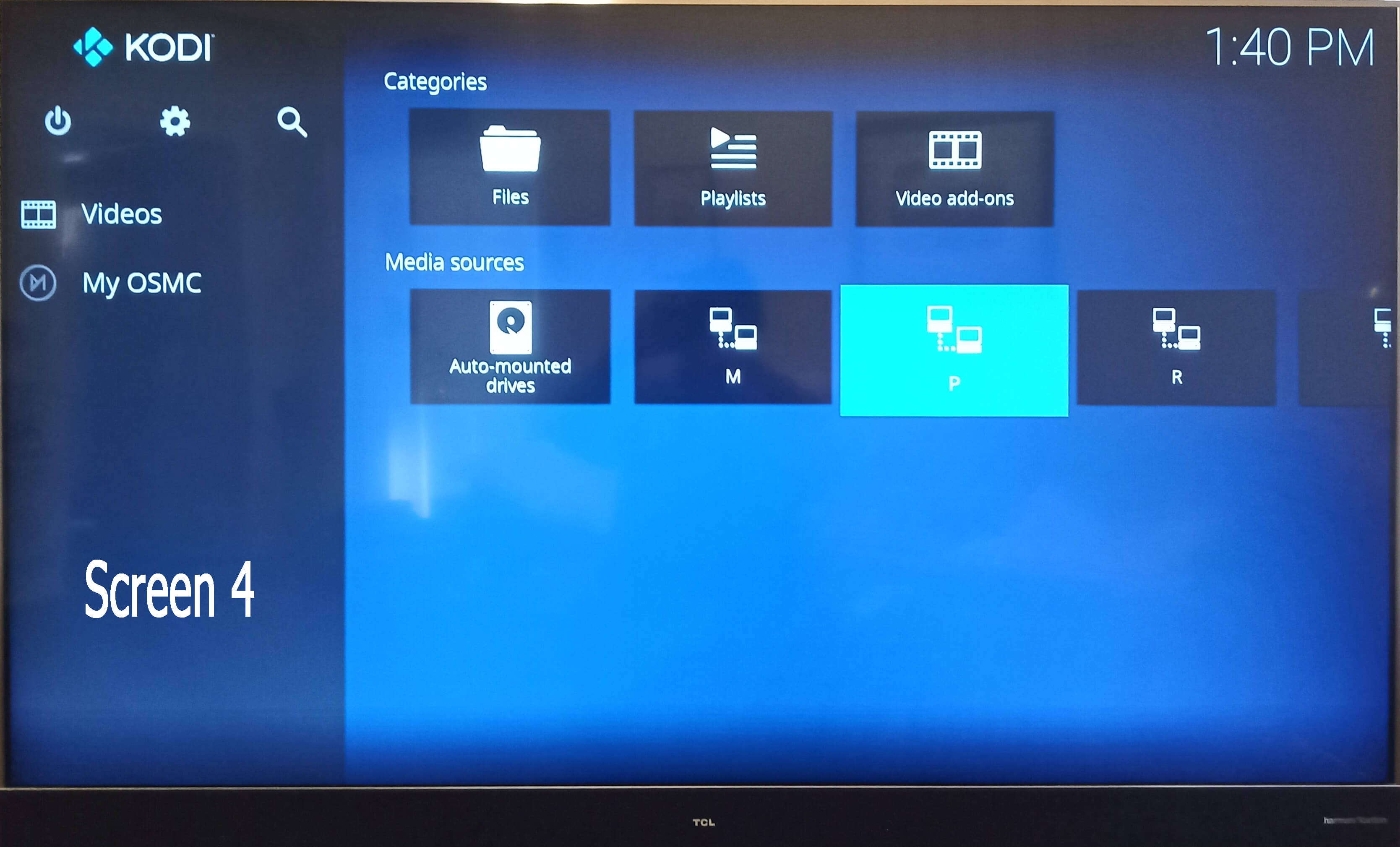
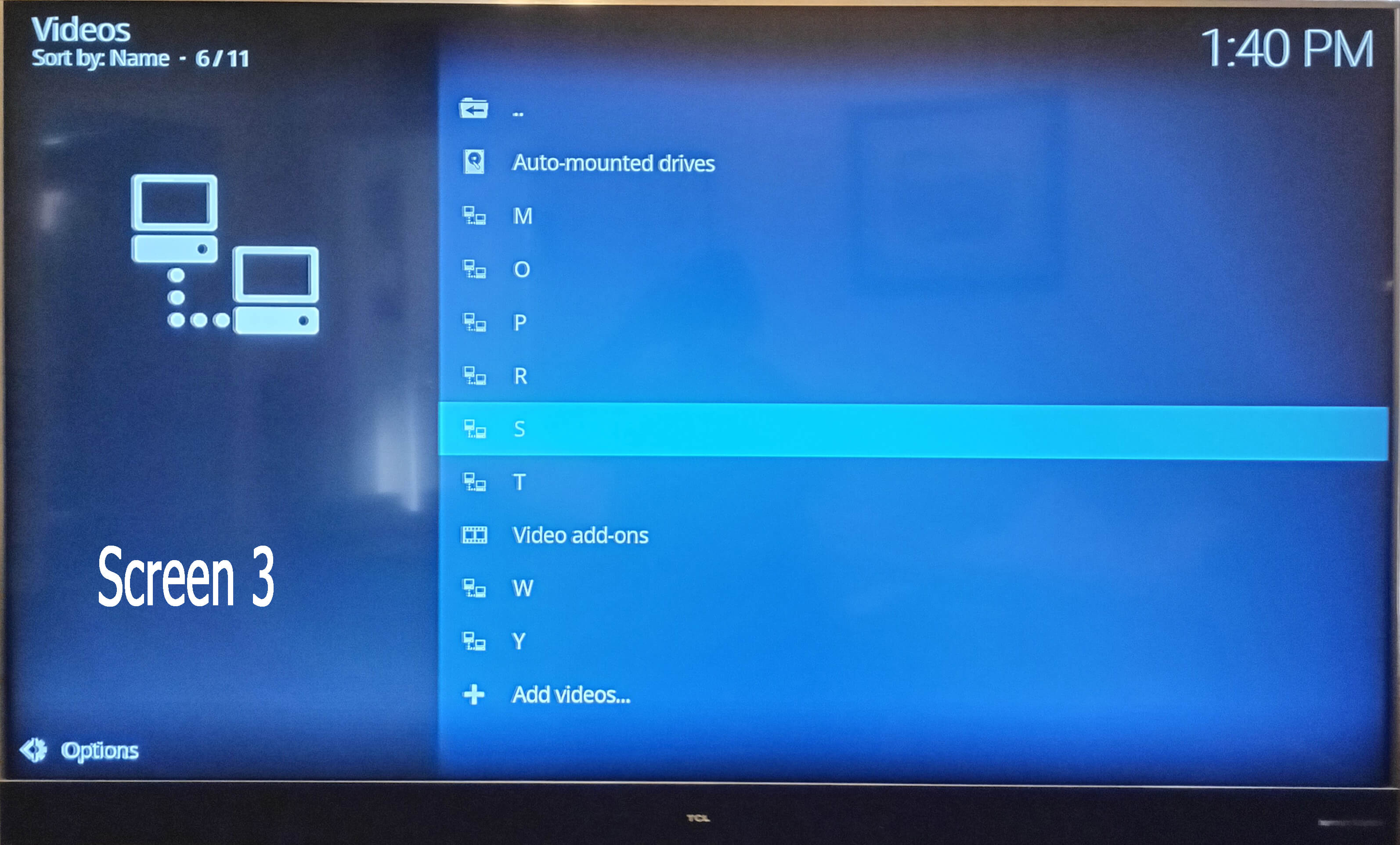
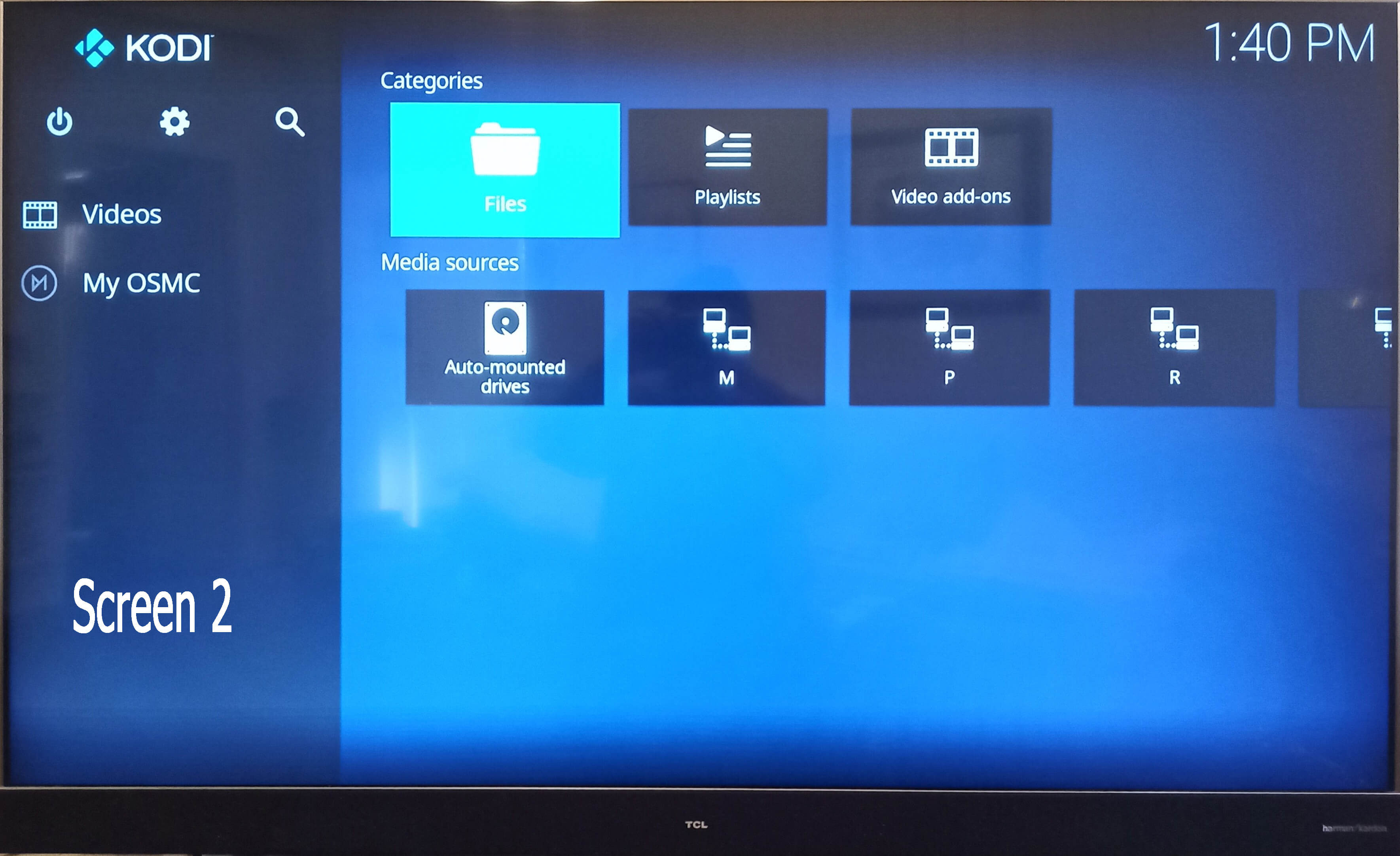
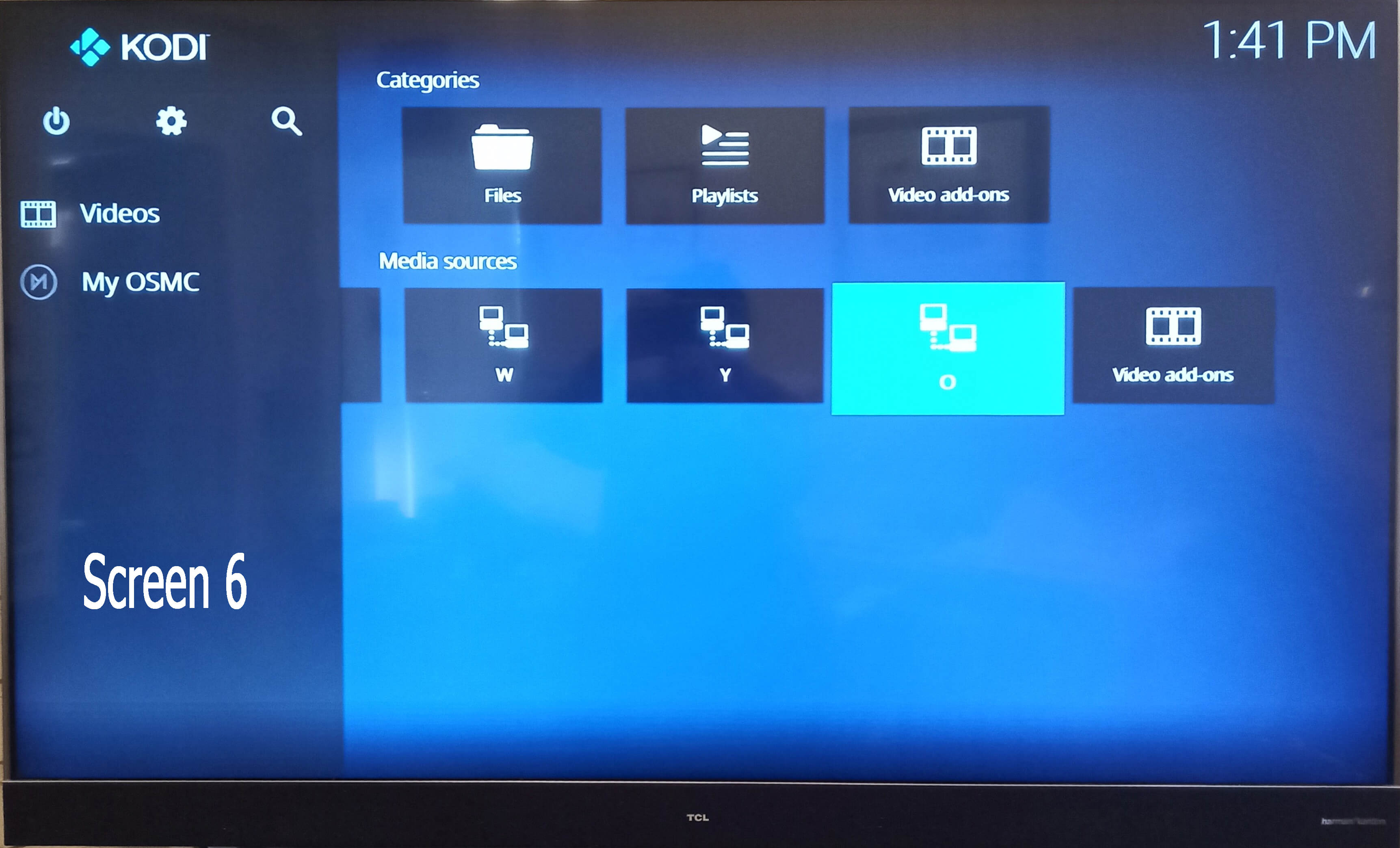
We’re all bruised and battered after a week’s struggle with Kodi settings but we’re nearly there. The last thing to fix is to tell Kodi is that one of our computer storage drives needs to display its files with the same layout as the others, which show small, neat vertical lists. But the roguey drive shows its contents as big folders with icons that look like a large printer. On the TV screen each item\box is about 120 mm x 100 mm, so, to see them all, we have too scroll the screen big time. Also, mixed in with those big boxes, are capital alphabet letters from A through to L. They contain nothing. WEird,=, eh? Any advice will be much appreciated,
Hi, I’m sure most readers (myself included) don’t know what you’re talking about. Could you at least post some photos so we can get an initial idea of what this is actually about?
If you hold down (long press) the menu button on one of these screens it should pop up the slide out menu. Take a look at the view type setting and compare that setting with the other.
Sorry about the loooooooooooong delay, we had to get a browser that is Ok with OSMC and our W7 system so that took time LOL as do most our computer things. Next step is to get pictures off my phone and load them here and perhaps some kindly person will tell us where we went wrogn with our V setting s. Bye for now…
Navigate to one of the screens you don’t like the look of like the one labeled “Screen 7” in the screenshots you posted. Navigate left until a menu pops out from the side (or if using an OSMC remote just hold down the menu button for a second or so which should bring up the same menu). In this side menu you should see an option labeled “viewtype”. The difference you are seeing in those screens are because that option is set to different things on those different sources.
Thankn you, that did it, lovely! One more thing: On Screen 1, is it possible to not show the folders labeled ‘Playlists’, ‘Video add-ons’ and ‘Auto-mounted’ drives’? I dont think we need them to show, do we?
 . Yes, I can send photos, how do I do that? Sorry, haven’t tried that yet

 for now…